


Key Takeaways
✔️ Learn how to add user to Google My Business in five straightforward steps, from accessing your Business Profile to sending invitations and managing team member permissions securely.
✔️ Understanding Google Business permissions is crucial, choose from three user roles (Primary Owner, Owner, and Manager) based on what each team member needs to accomplish, with Managers handling daily tasks and Owners managing strategic changes.
✔️ Properly managing who can add user to GBP protects your business while ensuring your profile stays updated.
Understanding Google Business Permissions and User Roles
Before you add user to Google My Business, it’s essential to understand the three different access levels available. Think of these Google Business permissions lik e different keys to your shop: some keys open everything, while others only open certain doors.
Google Business Profile offers three distinct user roles, each with specific capabilities designed to help you manage your online presence whilst maintaining security. Here’s a simple breakdown of what each role can do:
Understanding these Google Business permissions helps you to decide what level of access you’d like to give. For example, if you’re giving an agency access, they’ll likely need owner access to be able to fully optimise the profile.
However, your marketing exec may only need manager access to frequently post to your profile.
Step by Step Guide: How to Add User to GBP
Adding someone to your Google Business Profile is straightforward when you know the right steps. Remember, only Primary Owners and Owners can add user to GBP, so make sure you’re logged in with the correct account before starting.
Step 1: Sign In to Your Google Account
First, log in to the Google account that currently manages your Business Profile. This must be an account with Owner or Primary Owner permissions.
If you’re unsure which account has access, try logging into each Google account you use for business and searching for your business name in Google Search.
You can sign in to your Google Account here.
Step 2: Access Your Business Profile
Once signed in, go to Google Search and type [your business name] in the search box.
For example, I typed ‘Tangible Digital.’
You’ll see your Business Profile management panel appear directly in the search results.
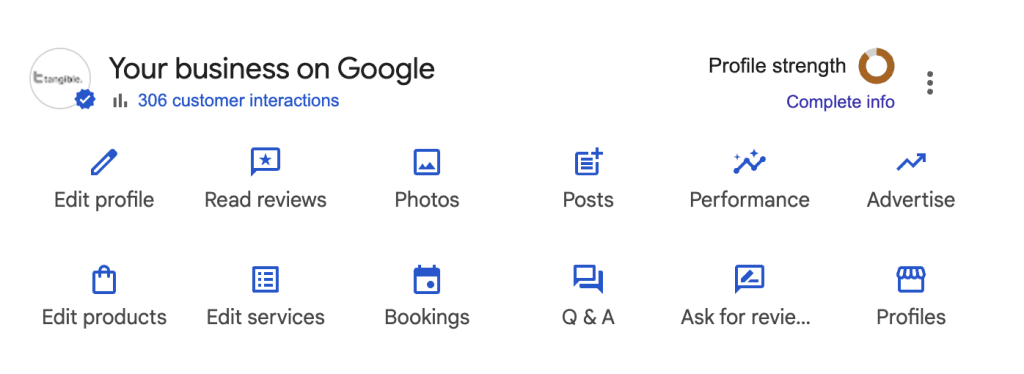
This convenient feature lets you manage your profile without navigating to a separate website. Alternatively, you can search for your specific business name to find and manage your profile.
Step 3: Navigate to User Management Settings
In your Business Profile panel, look for the three dots menu (often called the “More” menu).
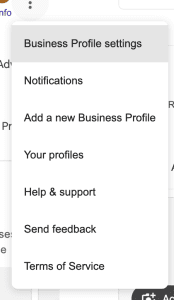
Click on it, then select “Business Profile settings” from the dropdown. Next, find and click on “People and access”.
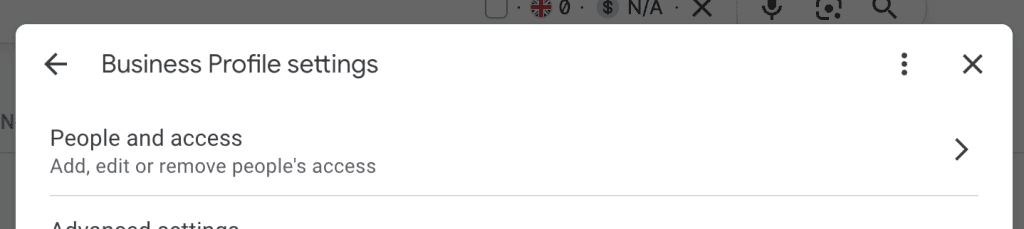
Depending on your interface version, this might appear as “Managers” or “Users”. This section shows all current users who have access to your profile.
Step 4: Send the Invitation
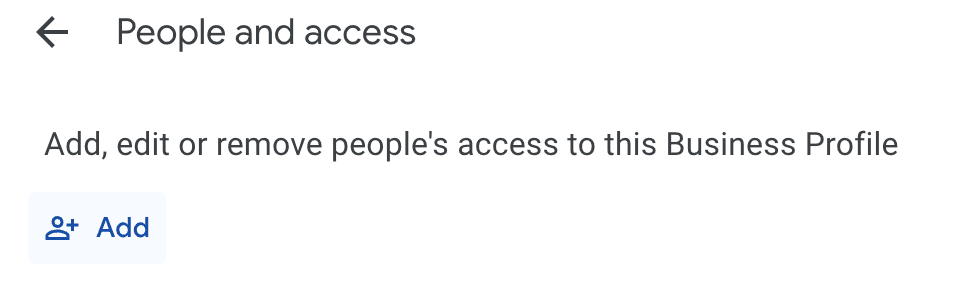
Now comes the crucial part where you actually add user to Google My Business. Click the “Add” button or the plus icon.
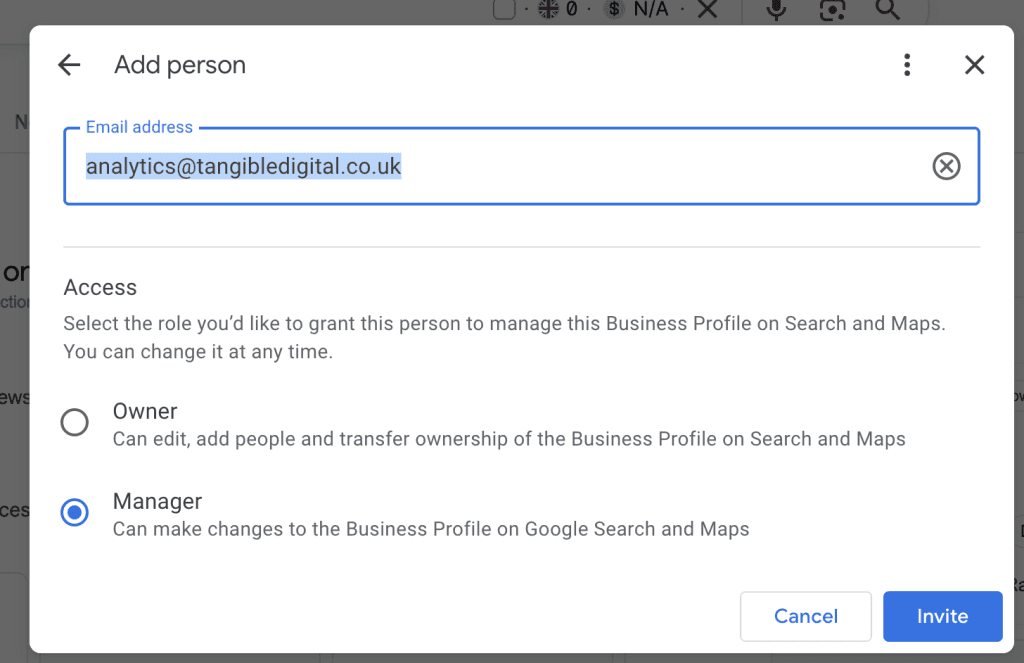
Enter the email address of the person you want to add. Make sure you type it correctly, as the invitation will go directly to this email.
Select whether you want them to be an Owner or Manager based on the permissions table above. Finally, click “Send invitation” to dispatch the access request.
Step 5: Invitation Acceptance and Management
The person you’ve invited will receive an email asking them to accept the invitation. They must click the link in the email and accept using their own Google account.
Once accepted, they’ll immediately gain access according to the role you assigned. As an Owner, you can always return to the People and access section to modify roles or remove users if circumstances change.
This systematic approach to add user to GBP ensures secure, controlled access whilst maintaining clear oversight of who can manage your business information online.
Best Practices for Managing Google Business Permissions
Smart management of Google Business permissions protects your business whilst enabling smooth collaboration.
Think of it like managing keys to your physical shop: you wouldn’t give everyone the master key, and the same principle applies to your digital presence.
Choose the Right Role for Each Team Member
When you add user to GBP, carefully consider what each person actually needs to do.
- Give Manager access to team members handling daily tasks like posting updates, responding to reviews, and updating business hours.
- Reserve Owner status for senior team members or business partners who need to manage user access or make strategic changes. This approach minimises risk whilst ensuring everyone can do their job effectively.
Maintain Strong Security Practices
Review your user list every quarter, just like you’d audit who has keys to your premises.
When team members leave or change roles, remove or adjust their access immediately through the People and access menu.
Keep a simple spreadsheet documenting who has which level of access and when it was granted. This record proves invaluable during transitions or if questions arise about profile changes.
Plan for Business Continuity
The Primary Owner should always designate at least one trusted Owner as a backup.
This ensures someone can take control if the Primary Owner becomes unavailable due to illness, vacation, or leaving the company.
Remember, only the Primary Owner can transfer primary ownership, so having this succession plan prevents your business from losing profile access during critical transitions.
Common Challenges and Solutions When Adding Users
Even with clear instructions, you might encounter some bumps when trying to add user to Google My Business. Here are the common issues we frequently come across:
Invitation Emails Going Missing
Sometimes the invitation email doesn’t arrive or ends up in the spam folder.
If someone hasn’t received their invitation within 10 minutes, ask them to check their spam or promotions folders.
You can also cancel the pending invitation in the People and access section and resend it.
Make sure the email address is typed correctly, as even a small typo will send the invitation to the wrong place.
Granting access to multiple Google Business Profiles
Businesses with multiple locations need extra care when setting up Google Business permissions.
Each location can have different users with different access levels. For example, each store manager might have Manager access to their specific location, whilst regional managers have Owner access across multiple sites.
You can grant bulk access to a Google Business Profile by creating a business group in Business Profile Manager and inviting users to manage the group, or by using a bulk-verified account to request ownership of a business profile via a spreadsheet.
The most straightforward method for granting access is to create a business group, add all locations to it, and then add the user to the business group with the desired role (Owner or Manager).
Dealing with Access Disputes
Sometimes former employees or partners might retain access longer than intended, or disputes arise about who should control the profile.
This is why regular audits matter so much. If you discover unauthorised access, remove the user immediately through the People and access panel.
In extreme cases where you’ve lost Primary Owner access, Google provides a verification process to reclaim your business profile, though this takes time and documentation.
If you’ve lost access to your Google Business Profile. Request it here.
Or give us a shout, and we’ll be able to advise you.
Ready to take your local business visibility to the next level? Whether you need help optimising your Google Business Profile or developing a comprehensive multi-location SEO strategy, contact our team at Tangible Digital for expert guidance tailored to your business needs.
Ready to maximise your local visibility?
Ready to dominate across all your franchise locations and stay ahead of local competitors? Book a free strategy call today and see how we can transform your Google Business Profiles into powerful lead-generation tools that keep customers finding your franchises first, at scale.
Get Started